🔗Overview
With a Benefactor Circle license, you gain access to the Outlook add-in. The add-in primarily makes signatures available in Outlook for iOS and Android, while supporting all Outlook editions across platforms. It's the ideal solution for Outlook editions that don't yet support roaming signatures and is particularly helpful in unmanaged BYOD scenarios.
It intelligently selects the appropriate signature based on the sender address, the type of item (new email, reply, or appointment), and any custom rules you define.
Applies correct signature on item creation, sender/recipient change, and send.
Can treat the sender's first reply in a conversation branch and forwarded messages as new mail, applying the full new-message signature when appropriate.
Use custom rules and real-time context to dynamically apply the perfect signature.
Manual preview and signature selection with built-in support for 80+ languages.
Full support for delegates, secondary addresses, and shared team accounts.
Works in all Outlook editions: Classic and New, Android, iOS, macOS, Web, Windows.
No middleware or proxy servers. Local execution.
You control the version, hosting, and deployment of independent configurations.
Self-hosting keeps license and operational costs minimal.
🔗Usage
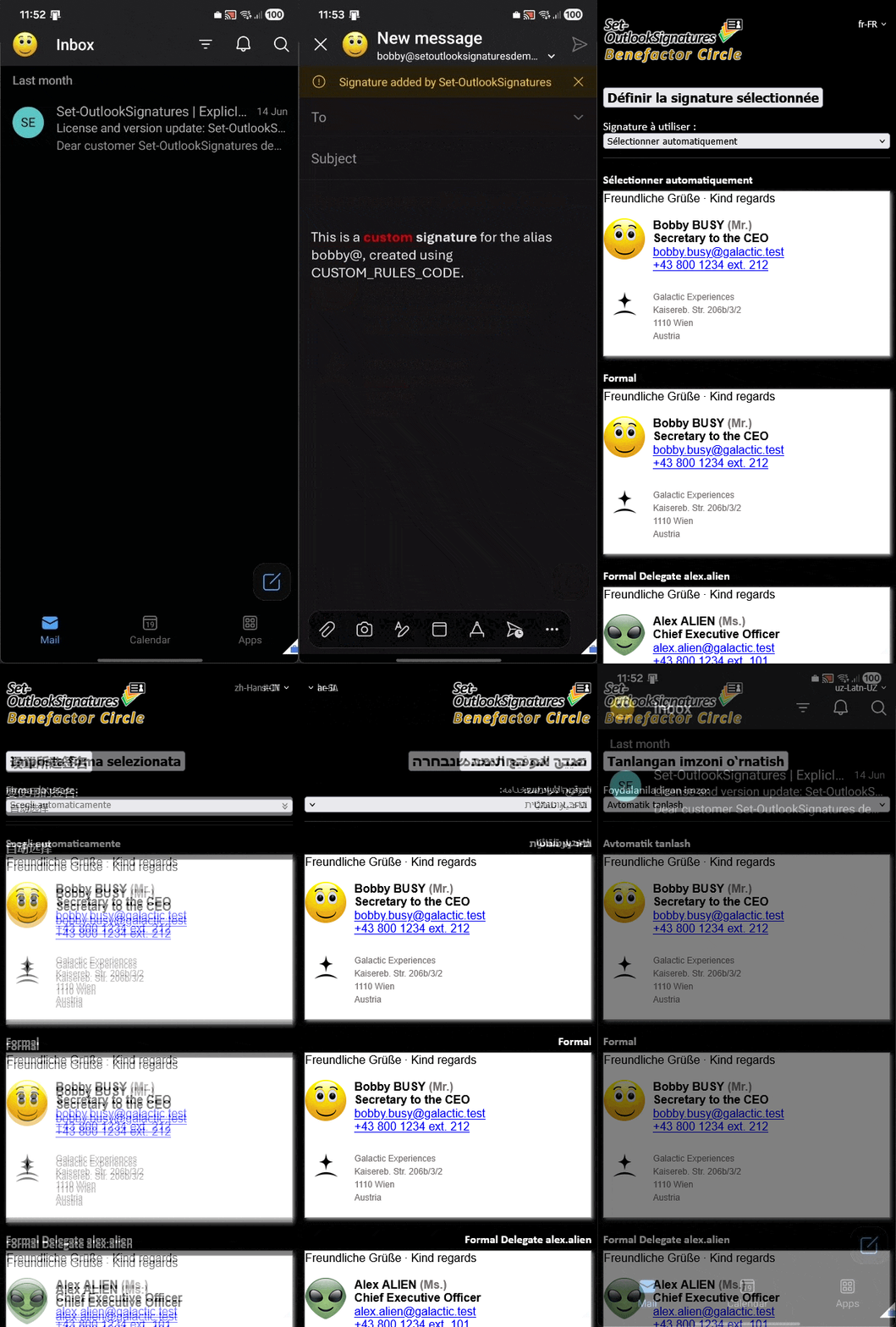
From an end-user perspective, basically nothing needs to be done: When writing a new email, answering an email, or creating a new appointment, the add-in automatically adds the corresponding default signature.
This automatic application is fundamentally powered by Outlook launch events (such as OnNewMessageCompose, OnNewAppointmentOrganizer, OnMessageCompose, OnMessageSend, and others). These launch events are fully configurable and can be tailored by host application and platform (allowing different behaviors depending on whether users are on Outlook for Windows, Mac, or the web).
The add-in listens for these specific configured triggers in the background, allowing it to seamlessly evaluate the context and inject the correct signature the exact moment an action is initiated, without requiring any manual user intervention.
A task pane is available to manually choose signatures, preview items, or override settings for debug logging. As the only component exposed to everyday employees, the Outlook add-in task pane is designed to feel completely native. It automatically follows Outlook's display language, supporting more than 370 locales across over 80 base languages, various scripts, and both text directions.
Beyond standard default signatures, advanced settings can be implemented via CUSTOM_RULES_CODE. This feature allows organizations to execute custom JavaScript logic. It runs when when triggered by background launch events and when being executed manually — for instance, when a user opens the task pane to explicitly choose a signature or override settings.
This flexibility allows the code to dynamically evaluate properties of the current Outlook item — such as checking the selected sender identity to swap in a brand-matched signature for secondary SMTP/alias addresses, or reading sensitivity labels — regardless of whether the action happens on creation or during a manual review.
Web (Exchange Online), New Outlook for Windows/Mac
- Emails: "Message" tab > "Apps" icon
- Appointments: Ribbon > "…" menu
Classic Outlook for Windows and Mac
- Emails: "Message" tab > "All apps" icon
- Appointments: "Meeting" tab > "All apps" icon
Outlook for the web (on-prem)
- Compose: Lower right corner of the window
- Appointments: Right side of the top menu bar
- Read mode: Left of the reply button
Mobile (iOS & Android)
- Read mode: Three dots ("…" or "⋮") in the header
- Compose: Signatures are added automatically
- Note: Task panes are only supported in Read mode on mobile
🔗Requirements
🔗Outlook clients
The add-in works for all Microsoft-supported Outlook clients. It runs in the security context of the user and supports delegate scenarios.
Standard Mailboxes
The add-in accesses signature information that the Benefactor Circle add-on has written to the user's mailbox in client or SimulateAndDeploy mode.
Shared mailboxes added with the credential of the logged-on user are directly supported.
Shared Mailboxes
For shared mailboxes added with separate credentials, the add-in must be installed for that specific identity to access its signature data.
🔗Web server and domain
The requirements for your web server are straightforward:
- Reachable from mobile devices via the public internet.
- Use a dedicated host name (e.g.,
https://outlookaddin01.example.com). Do not use subdirectories. - A valid TLS certificate. Let's Encrypt is a good free alternative, especially when used with an ACME client for auto-renewal.
- Production servers should not return
Cache-Controlheaders likeno-cacheorno-storefor images.
If you do not have your own web server and prefer not to rent one, static website hosting in Azure Storage provides a simple, fast, and free alternative. It is easy to set up, includes a Microsoft-managed TLS certificate, and meets all requirements for hosting Outlook add-ins, making it an attractive option not only for testing but also for production scenarios.
🔗Entra ID app
When mailboxes are hosted in Exchange Online, the add-in needs an Entra ID app to access the mailbox. Creating a separate app is strongly recommended.
powershell.exe -NoExit -File "c:\test\sample code\Create-EntraApp.ps1" -AppType "OutlookAddIn" -AppName "Set-OutlookSignatures Outlook add-in" -OutlookAddInUrl "https://yourhost.yourdomain.com"For manual configuration, the following Delegated Graph API permissions must be granted with admin consent:
Mail.Read
Allows reading emails in the current user's mailbox. Required due to Microsoft restrictions accessing roaming signatures.
GroupMember.Read.All
Allows the app to check group memberships to verify license groups for the signed-in user.
User.Read.All
Required to retrieve the User Principal Name (UPN) for a given SMTP email address.
If you want to use TREAT_FIRST_REPLY_AS_NEW_MAIL with shared and delegate mailboxes, you must also add the "Mail.Read.Shared" permission. This allows to query the metadata required for the feature.
Authentication: Use Single-page application with a redirect URI of brk-multihub://yourhost.yourdomain.com.
🔗Configuration and deployment
With every new release of Set-OutlookSignatures, the Benefactor Circle add-on comes with an updated Outlook add-in. You must update your deployment whenever the add-in version or your add-in configuration changes.
It is recommended to use at least two separate dedicated hostnames: One for testing and one for production (e.g., https://outlookaddin01test.example.com and https://outlookaddin01.example.com).
Deploying the add-in is a simple and fast three-step process: Configuring the code, uploading the files to a web server, and rolling out the manifest to your mailboxes.
You must update your deployment whenever the add-in version or your add-in configuration changes.
Most rollout issues with Outlook add-ins are caused by two common misunderstandings that are easy to make, but just as easy to resolve:
- The add-in version must be incremented correctly — combining the fixed three-part add-in version, such as v4.30.0, with your own configuration version, such as 17.
- Outlook never reads the manifest.xml file directly from the web server after deployment, but relies solely on the manifest snapshot stored during rollout
The following diagram visualizes both concepts:

🔗Step 1: Configure the Add-In
The add-in is built using the run_before_deployment.ps1 script. This script injects your technical details into the source code and generates a publish folder containing your customized add-in code, include the manifest.xml file used for deployment.
General Settings
- Versioning: Increment this every time you change a setting. This is the only way to force Outlook to clear its local cache and download the new files.
- Deployment URL: Define your dedicated hosting domain (e.g.,
https://outlookaddin01.example.com). - Cloud Environment: Set your environment and Entra ID Client ID.
- Debug Logging: Enable or disable detailed execution logs.
Automation Rules
- Platform Targeting: Choose which hosts add signatures automatically.
- Item Types: Enable automation for emails, appointments, or both.
- Client Signatures: Optionally disable signatures configured by users.
Custom Rules Code
Modify CustomRulesCode.js to dynamically influence signature selection at runtime based on an a huge variety of conditions, including:
- Internal vs. external recipients
- The sender's email address
- Specific customers in the To field
- Mail vs. Appointment types
- Subject line keywords
- Item status (New, Reply, or Forward)
… and many more. You can even generate unique signatures at runtime without choosing a pre-deployed template.
See .\sample code\CustomRulesCode.js for details, or click here to see an overview diagram.

A re-usable configuration run typically looks like this:
$ProductionValues = @{
    VERSION_NUMBER                  = 0
    DEPLOYMENT_URL                  = 'https://outlookaddin01.example.com'
    SIGNATURE_HOSTS_AND_PLATFORMS   = @(
        'OutlookAndroid_on_Android',
        'OutlookIOS_on_iOS'
    )
    APPOINTMENT_HOSTS_AND_PLATFORMS = @(
        'newOutlookWindows_on_OfficeOnline',
        'Outlook_on_Mac',
        'OutlookWebApp_on_OfficeOnline'
    )
    DISABLE_CLIENT_SIGNATURES       = 'false'
    CLOUD_ENVIRONMENT               = 'Public'
    GRAPH_CLIENT_ID                 = 'd5ce675b-f043-4856-b7bc-02d91db30bc8'
    NOTIFICATION_TEXT               = 'Signature added by Set-OutlookSignatures'
    DEBUG                           = 'false'
}

.\run_before_deployment.ps1 @ProductionValues
Click to see diagrams showing the add-in runtime workflows. Configuration variables are shown in parentheses next to the steps they influence: the launch event workflow covers automatic processing, while the task pane workflow covers the interactive manual path.
Launch event workflow with configuration references

Task pane workflow with configuration references

🔗Step 2: Publish the Add-In to a Web Server
After running run_before_deployment.ps1, upload the content of the publish folder to your web server.
- The files must be hosted at the root of a dedicated host name (e.g.,
https://outlookaddin01.example.com). Subdirectories, such ashttps://www.example.com/outlookaddin01, are not supported. - Do not upload the
publishfolder itself, only its content, including subfolders.
🔗Step 3: Deploy the Add-In to Mailboxes
When the manifest.xml file, the configuration or another part of the Outlook add-in changes, you need to tell your mailboxes that an updated version or configuration is available and must be downloaded.
The information from the manifest file is stored in the assigned mailboxes, but not the add-in itself - every Outlook client downloads a local copy of the add-in based on the one-time information transfer from the manifest file.
These downloaded files are cached locally. The cache is only updated when a manifest file with a changed version number is added to the configuration of the mailbox, or when the cache gets cleared manually.
Individual Installation (Sideloading)
Ideal for test scenarios. Sideloading of add-ins may have been disabled by your administrators.
- Exchange Online: Open
https://outlook.cloud.microsoft/mail/inclientstore> My add-ins > Add from file. - On-prem: Open
https://YourMailServer.example.com/owa/#path=/options/manageapps> Add from file. - Removal: Draft a new mail, click the Apps button, right-click the add-in and select Uninstall.
Enterprise Deployment (Production)
Ideal for mass deployment after the test phase.
- Integrated Apps: The modern method for Microsoft 365 environments.
- Centralized Deployment: Use this if Integrated Apps is not yet available in your cloud tenant.
- For on-prem mailboxes, see the Microsoft article Install or remove add-ins for Outlook for your Exchange 2013 organization.
Both methods share the same backend and are usually too slow for test scenarios: Microsoft documents state up to 24 hours for new add-in deployments, and up to 72 hours for changes to existing deployments. Consider clearing the Outlook add-in cache to speed up and test the deployment on select clients.
🔗Logging and troubleshooting
Troubleshooting Outlook add-ins can be complicated because the software operates through both a visible task pane (triggered manually) and invisible background processes (launch events triggered by Outlook). While the interface may appear functional, background tasks — such as signature injection — can sometimes fail due to environment-specific settings or local caching issues. Use the following procedures to capture diagnostic logs for targeted analysis and to speed up testing of new releases and configuration settings.
The "Set selected signature" button in the add-in task pane runs exactly the same code as a launch event does. If setting the signature interactively via the button works, the problem is very likely not to be found in the Outlook add-in itself but rather in the Outlook host application.
If launch events do not seem to work, runtime logging is the only definitive way to confirm if Outlook is triggering these events at all. It is reocmmended to clear the Outlook add-in cache first, as described below.
For troubleshooting Outlook launch events, Outlook Web is the fastest and most reliable environment, followed closely by New Outlook.
While Outlook for iOS and Android pick up updated add-in code quickly, their debugging is limited since there is no native runtime logging and you are limited to the DEBUG parameter of the add-in.
Classic Outlook for Windows is by far the most challenging; It is often incredibly slow to enable launch events, especially with multipe mailboxes. It often requires multiple restarts, where you must wait after each restart until the "All folders are up to date" message remains stable for at least one full minute.
Clear the Outlook add-in cache
When testing, Outlook sometimes takes too long updating its cache. Follow these official Microsoft instructions to manually clear it:
- Outlook for the Web: Hard Refresh the browser window.
- Classic Outlook for Windows: Official instructions from Microsoft.
- New Outlook for Windows: Official instructions from Microsoft.
- Outlook for Mac: Official instructions from Microsoft.
- Outlook for iOS: Task pane > Advanced options > Reload add-in.
- Outlook for Android: App info > Force Stop > Clear Cache (do not tap Clear Data).
Restart Outlook after clearing the cache, even if not explicitly prompted. Allow up to 10 minutes for add-ins to fully reload, especially in Classic Outlook for Windows. If launch events fail to trigger, a second restart usually resolves the issue.
Runtime logging
The add-in outputs diagnostic data to the browser console and the internal logging box within the task pane. However, certain environments lack console access, and launch event (which run in the background) cannot send data to the task pane UI. This makes it difficult to determine if a failure is due to a code error, a compilation issue, or if Outlook simply failed to trigger the event.
While you can enable the DEBUG parameter via run_before_deployment.ps1 to force event logging directly into the body of new emails, this is a heavy-handed approach. Most Outlook editions provide more elegant ways to capture runtime logs:
Outlook Web
Since the web version runs in a browser, standard web debugging tools are sufficient.
- Press F12 (or right-click and select "Inspect") to open the browser’s developer tools.
- Go to the Console tab to monitor all add-in activity.
Classic Outlook for Windows
You can redirect add-in activity to a local text file by modifying the Windows Registry.
-
Define your log file path by setting the default value of the following key:
HKCU\Software\Microsoft\Office\16.0\WEF\Developer\RuntimeLogging. You can execute this quickly via PowerShell:$Logfile = "c:\test\outlook_add-in_runtimelogging.txt" if (-not (Test-Path "HKCU:\Software\Microsoft\Office\16.0\WEF\Developer\RuntimeLogging")) { New-Item -Path "HKCU:\Software\Microsoft\Office\16.0\WEF\Developer\RuntimeLogging" -Force } Set-ItemProperty -Path "HKCU:\Software\Microsoft\Office\16.0\WEF\Developer\RuntimeLogging" -Name "(Default)" -Value $Logfile Restart Outlook.
The specified file will now record all add-in activity, including launch event details and Set-OutlookSignatures specific messages.
New Outlook for Windows
New Outlook allows you to attach developer tools directly to the application process.
- Close New Outlook.
- Launch it from a command prompt or the Run dialog:
olk.exe --devtools
This opens a secondary window containing the Edge Developer Tools. Select the Console tab to view live logs from launch events and Outlook add-ins.
Classic and New Outlook for macOS
On macOS, you can enable runtime logging through the terminal.
- Force quit Outlook.
- Run the following command to set the log file destination:
defaults write com.microsoft.Outlook CEFRuntimeLoggingFile -string "outlook_add-in_runtimelogging.txt" - Open Outlook.
Add-in activity is now logged to the file ~/library/Containers/com.microsoft.Outlook/Data/outlook_add-in_runtimelogging.txt, including all messages from launch events and Outlook add-ins.
Outlook for Android, Outlook for iOS
Mobile versions of Outlook do not support native runtime logging. To troubleshoot these platforms, you must use the "last resort" method: Enable the DEBUG parameter in your configuration via run_before_deployment.ps1 to see event logs within the email body.
🔗Remarks
General Platform Notes
- Roaming Signatures: Microsoft currently limits add-in access to roaming signatures. The add-in uses data from the last run of Set-OutlookSignatures (v4.14.0+) as a workaround until this is resolved.
- Online Connection: Microsoft APIs only allow access to online content. The add-in requires an active connection to the mailbox and cannot access offline cache or the local file system.
- Event Support: Automation relies on Outlook "Launch Events" (e.g., OnNewMessageCompose). Note that Microsoft does not currently support add-ins for calendar invite responses.
- Office.js: Microsoft dynamically updates the underlying framework. If automation behaves unexpectedly, the task pane remains the reliable manual fallback.
Outlook for iOS & Android
- Only Exchange Online mailboxes are supported.
- Task panes are not permitted by Microsoft during compose mode; signatures are applied automatically via events, including custom rules.
- Automated signatures for new appointments are not yet supported by the mobile APIs.
Outlook for Mac
- New Outlook for Mac: Fully supported and recommended.
- Classic Outlook for Mac: Out of support by Microsoft. Support is provided on a best-effort basis due to API instability on this legacy platform.
Outlook for the web (On-Prem)
- Launch events are not supported by the on-premises APIs; the process must be triggered via the task pane.
- Images may be replaced with alternate descriptions due to a known bug in the Microsoft office.js framework for on-prem hosts.
Classic Outlook for Windows
- Launch events can be unstable for on-prem mailboxes; use the task pane if signatures do not appear automatically.
- For Exchange Online mailboxes, an Outlook version supporting Nested App Authentication (NAA) must be used.
The Benefactor Circle license funds the open-source development, ensuring the core engine remains free and peer-reviewable for the global community.